Sections are a very powerful tool in Traction that allow you to display any cross-section of content at any volume level -- you can show as little as a just titles or entire pages within a section.
You saw examples of sections in Home Page and Dashboards. Sections may be placed on the Front Page or Newspage, or they may be included in an article, or even a comment.
Sections may be filled by dynamic queries or static lists that you indicate in the section configuration or in a Collection. You can create sections based on any of the following criteria, and, in many cases, you may include additional boolean conditions by limiting on search criteria:
Recent articles and comments, for all spaces or a specific space
Recent edits, for all spaces or a specific spaces
Recent discussions, for all spaces or a specific space
Recent Page Naming Activity including new, requested, removed, and renamed page names as well as orphaned pages
Recent Page and Comment Moderation Activity including actions taken to Publish, Unpublish, Reject, Lock and Unlock articles or comments.
Sections can be sorted based on alphabetical (forward or reverse), chronological (forward or reverse), random, discussion activity or in a specified order.
Sections may be configured to show as little content as you like. You can configure sections to display:
Titles
Details: Title plus Author, Date, Number of Comments and Attachments
Brief: Title, Details, if desired, plus a paragraph
Full: Title, Details, if desired, plus full article content
If you have activated Page and Comment Moderation, sections can be set to show or exclude articles and comments which are in Published, Unpublished, Rejected, Locked or Unlocked status.
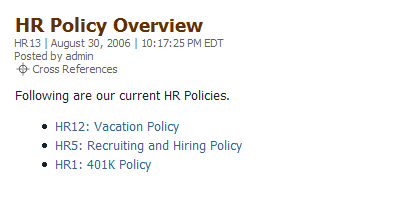
In Linking, we show you how links are easily written in Traction. The example in that case shows the article linking directly to two others by using explicit links to articles or page names
In many situations, especially in those scenarios where you want to link to a live list of content which may change or evolve over time (e.g Requirements tagged for a given Milestone, Drafts for Moderation, Active HR Policies, and so on) rather than linking explicitly to each page, a Section can do the job better.
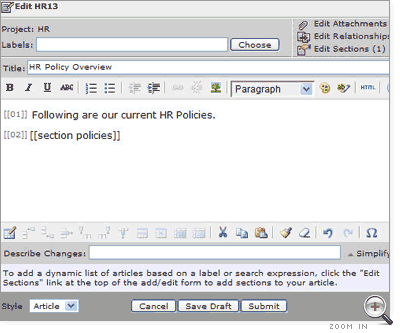
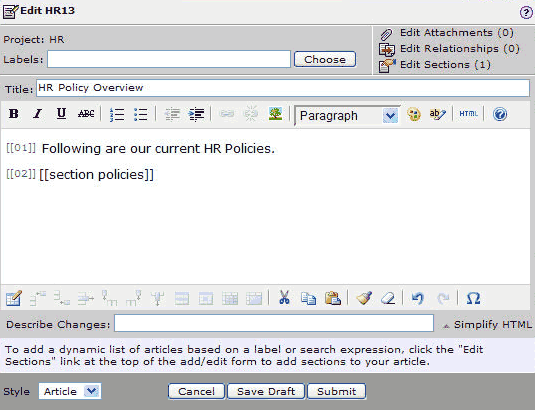
Here is the editor. You replace the links with a section name using Traction's simple double bracket syntax:
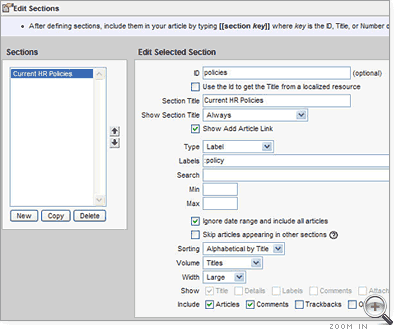
After you insert the section marker, just click Edit Sections to configure the section. You'll see a configuration window, where you will tell Traction what to include in the page section:
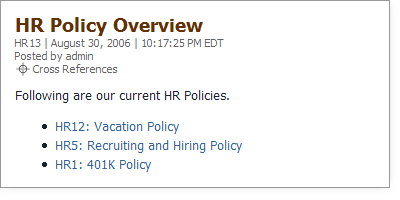
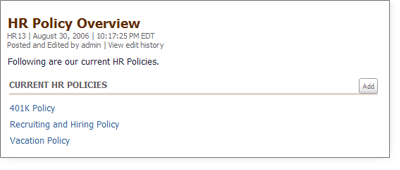
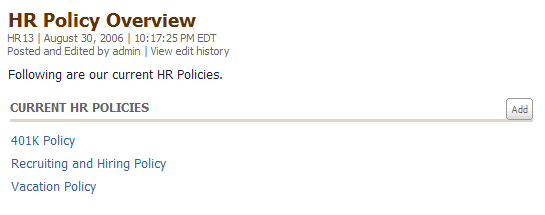
And below is the resulting article with the section embedded. It's a simple and powerful tool for generating lists of your tagged content.
You'll notice that an ADD button is included in the section. People with permission to publish in this space can easily add to the section simply by filling in the New Article form that pops up. This makes it easy to encourage a specified type of contribution. With a simple section setting, you can configure the ADD button to launch a Article Templates or even custom forms.